Choose where to publish
Pick the way your articles reach your website, see what each option needs from you, and publish your first article in one click.
Last updated on
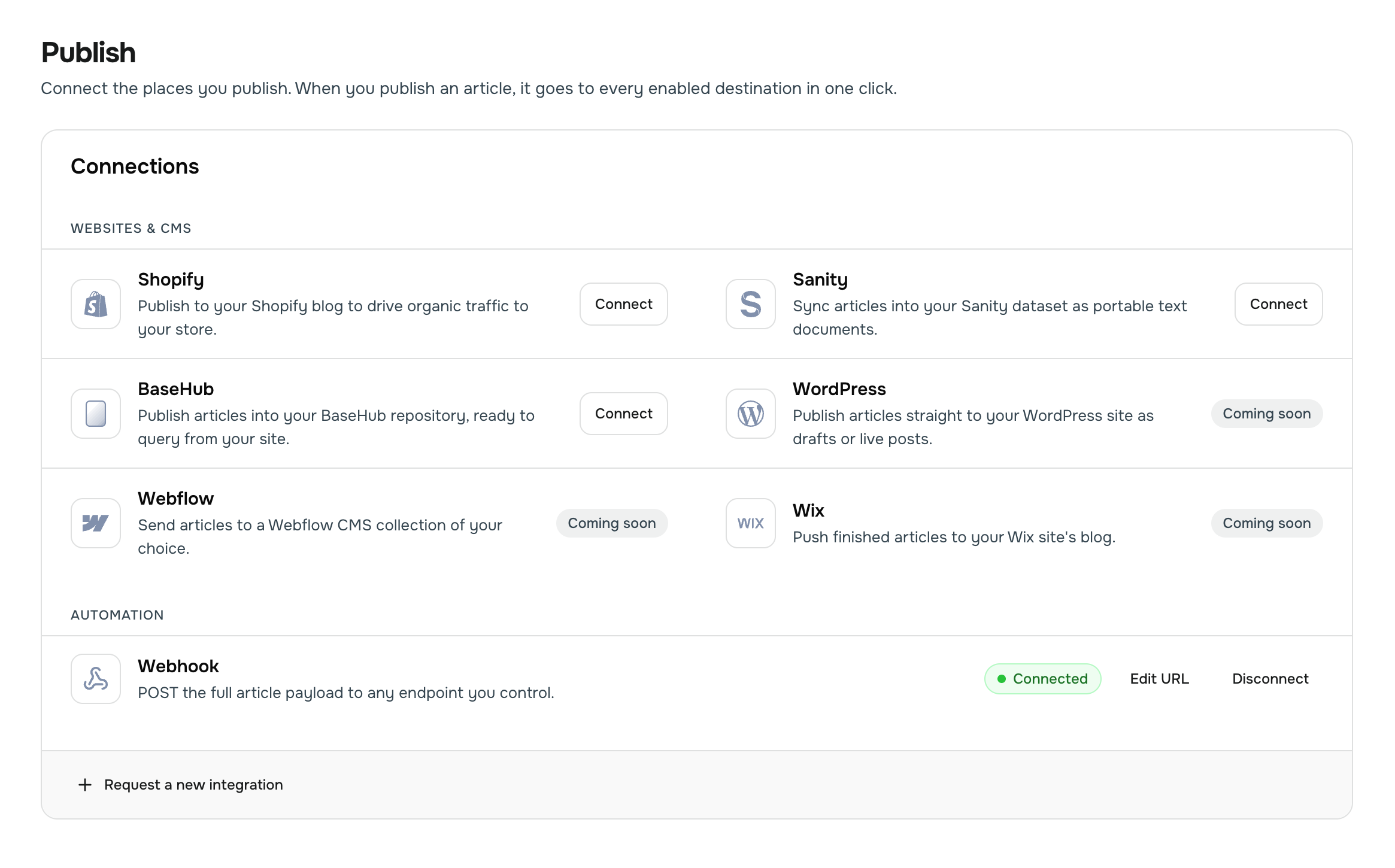
GrowWriter sends a finished article straight to your website. You connect a channel once, on the Channels page, and from then on every article goes live in one click from your Library. This page helps you pick the channel and shows what happens when you publish.
Two kinds of channel
The Channels page lists its channels in two groups.
- Websites & CMS are the places your site already stores its posts: Shopify, Sanity and BaseHub. Connecting one takes a few minutes in a dialog, with no code. WordPress, Webflow and Wix are marked Coming soon.
- Automation holds the Webhook. It sends each article to an address on your own website, and someone has to write the code that receives it.
Is your platform missing? Click Request a new integration at the bottom of the page. It opens a support message with the request started for you.
Which one is for me
| Your website runs on | Connect | Who does it | Time |
|---|---|---|---|
| A Shopify store with a blog | Shopify | You, with admin access to the store | About ten minutes |
| A site with Sanity as its CMS | Sanity | You, with a project token from whoever set up Sanity | About ten minutes |
| A site with BaseHub as its CMS | BaseHub | You, with an admin token for the repository | About ten minutes |
| Anything else: a custom site, another CMS, a static site | Webhook | Your developer | One file of code on their side |
Not sure what your site runs on? Ask the person who built it, or send them this page. They will know in a minute.
Connection status
Every connected channel shows a status on its row.
- Connected: ready. Articles you publish go there.
- Not verified: the webhook address is saved but has never answered. Click Send test event on the row, or just publish; the first success verifies it.
- Connecting: a test is running. Wait a few seconds.
Something off? Edit URL changes a webhook address without touching its secret. Disconnect removes the channel; reconnecting starts fresh.
Publish an article
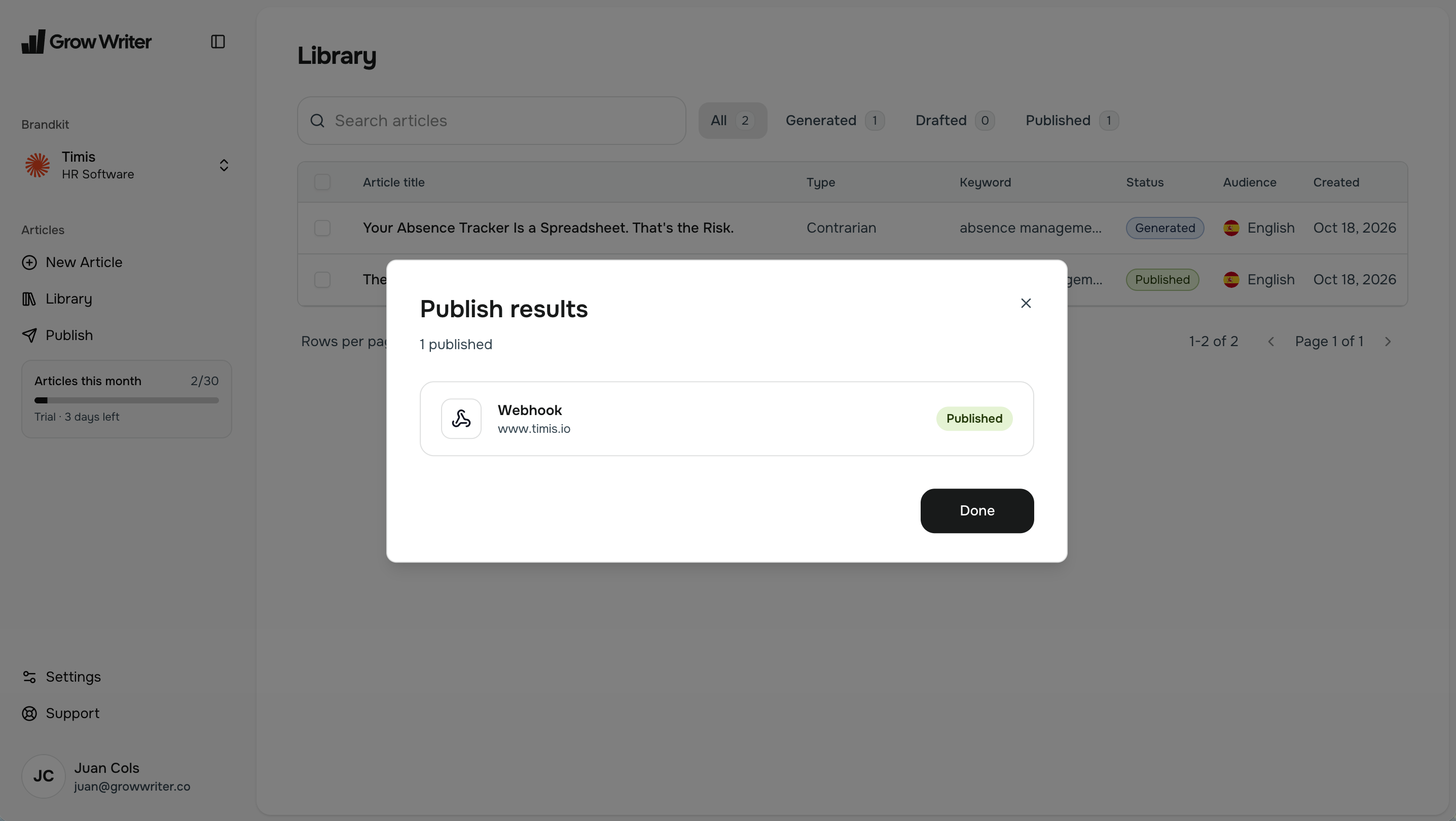
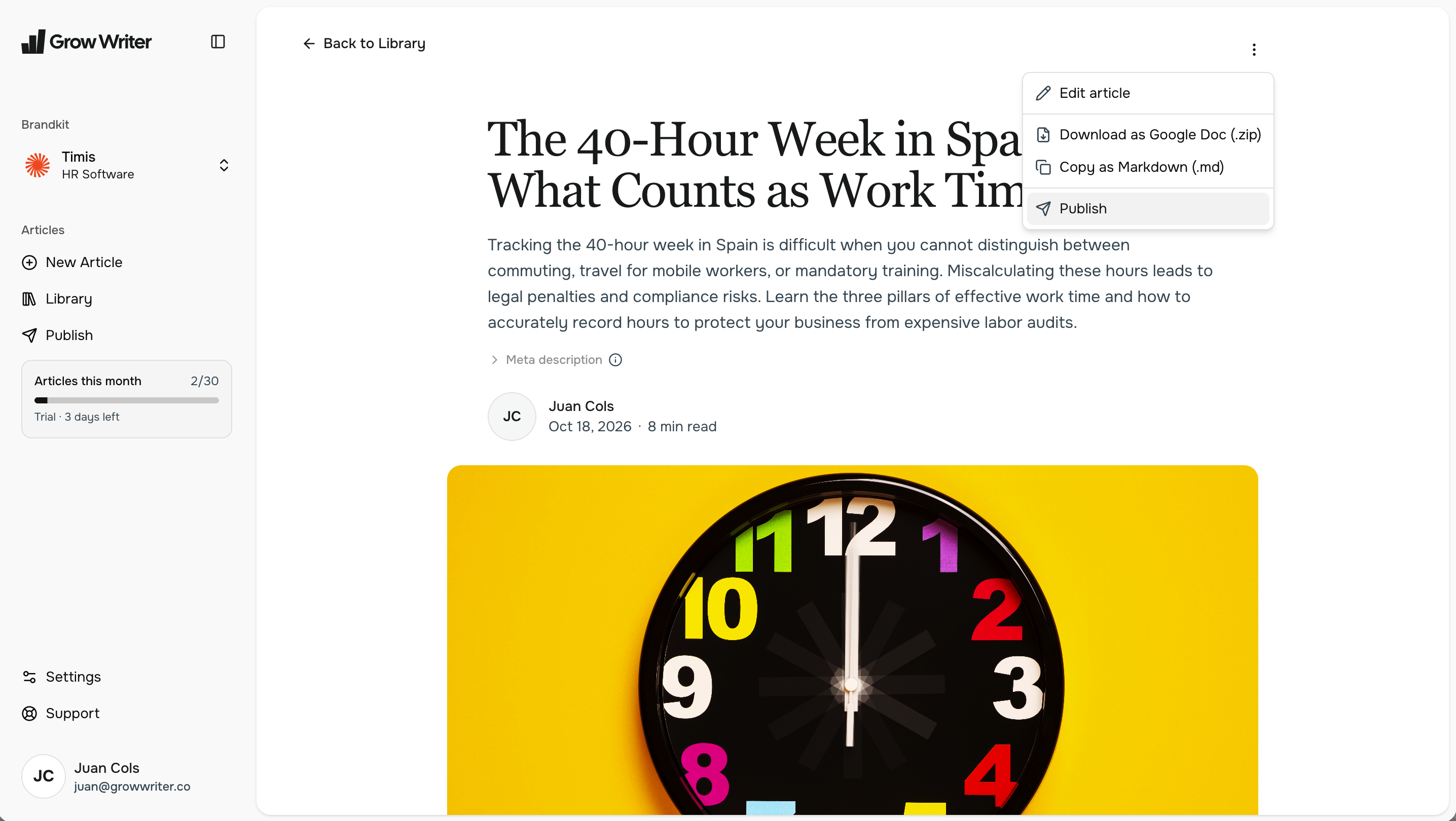
- Open your Library and find an article that has finished generating. Hover the row and click Publish, or open the article and pick Publish from the Options menu.
- The dialog lists your connected channels. Each one says what will happen: Will publish new for a first publish, Will update existing when the article is already live there. Tick the ones you want.
- Shopify asks for an author. Pick one from the list or type a new name; the other channels fill it in for you.
- Click Publish. The dialog stays open for a few seconds while the article travels.
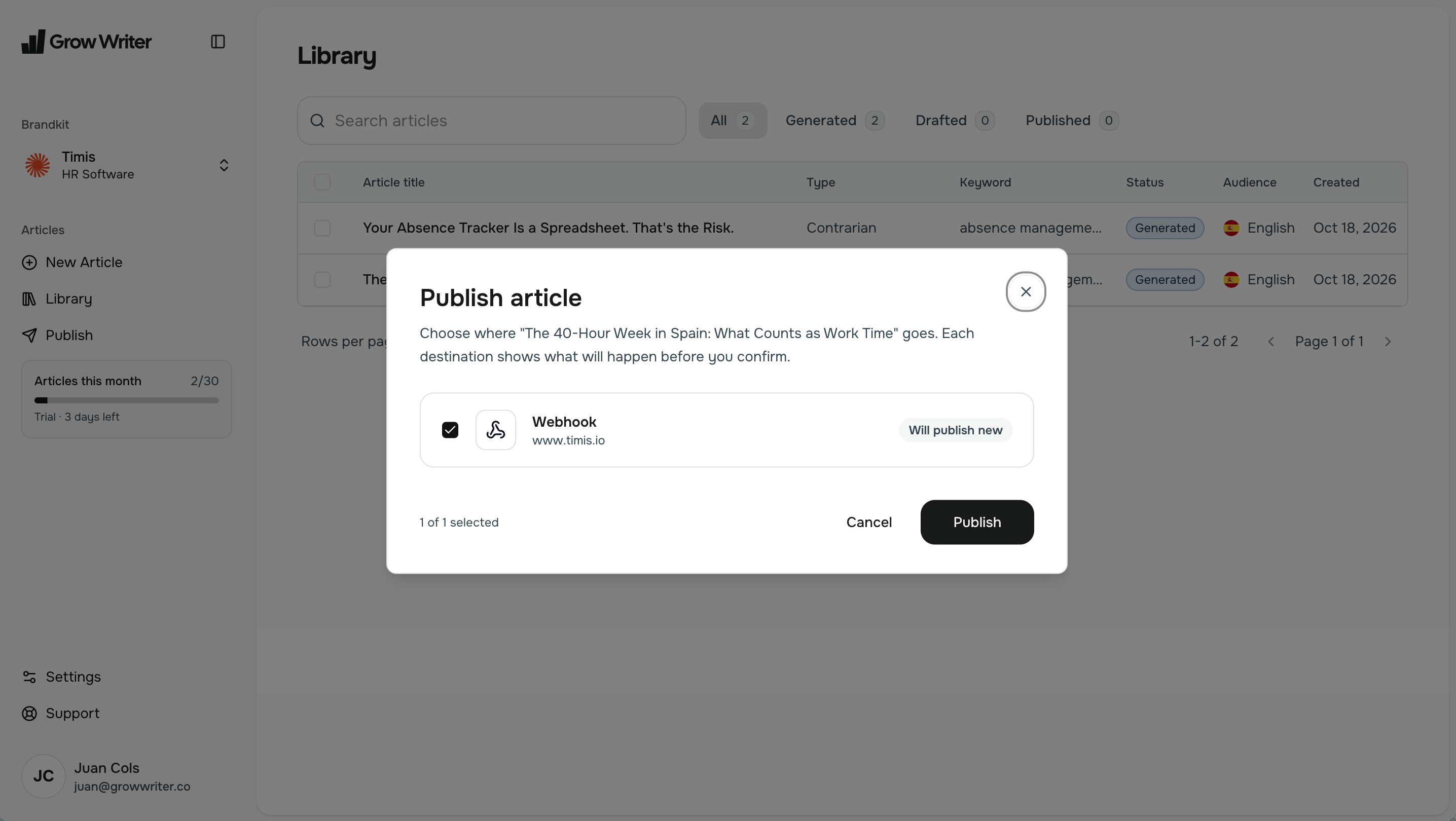
When it is done, every row shows Published or Updated and a View post link that opens the live article. A row that failed shows the reason and a Retry button; the other channels are not affected.
Publishing the same article again later, after an edit, updates the post in place. The original publish date stays; nothing is duplicated.
Export instead
Rather paste the article somewhere yourself? Open the article and use the Options menu:
- Download as Google Doc (.zip): the article as a Word-compatible document plus a folder with its images, ready for Google Docs.
- Copy as Markdown (.md): the full text in Markdown, on your clipboard.
Limits
You can publish up to 20 times per hour; each channel you tick counts once. If you hit the limit, the dialog says so, nothing is lost, and you can try again a few minutes later. See "Too many requests".