Publish with webhooks
Send every article you publish in GrowWriter straight to your own website. Set up the webhook integration step by step, with ready-to-use code.
Last updated on
Your website might not run on one of the platforms GrowWriter connects to out of the box. That's fine. With the webhook integration, GrowWriter delivers every article straight to your site the moment you hit Publish. Custom stack, homemade CMS, static site, anything. If it can receive a web request, it can receive your articles.
This guide walks you through the whole setup. No webhook experience needed. You'll connect the webhook in GrowWriter, add a small piece of code to your website, and test it. By the end, publishing an article in GrowWriter will create or update a post on your own website automatically. All you need is a website you can add code to.
Want the shortest path first? The quickstart gets one stack to a delivered test event on a single page; come back here to save the article. When you need every detail, two companion pages have them: the payload reference and troubleshooting.
Already know what a webhook is? Skip to the setup.
What is a webhook?
A webhook is the simplest way for two apps to talk: when something happens in one app, it sends a message to a web address you choose.
Think of it as a delivery service. You give GrowWriter your address (a URL on your website). When an article is ready, GrowWriter knocks on that door and hands over the full article as structured data. Your site takes it from there: save it, format it, publish it your way.
Why this beats the alternatives:
- No copy-paste. The article arrives with its title, content, images, and SEO fields already organized.
- No checking for updates. Your site doesn't have to ask "anything new?" every few minutes. GrowWriter only calls when there's something to deliver.
- No platform lock-in. Webhooks speak plain HTTPS and JSON, which every web stack understands.
How it works
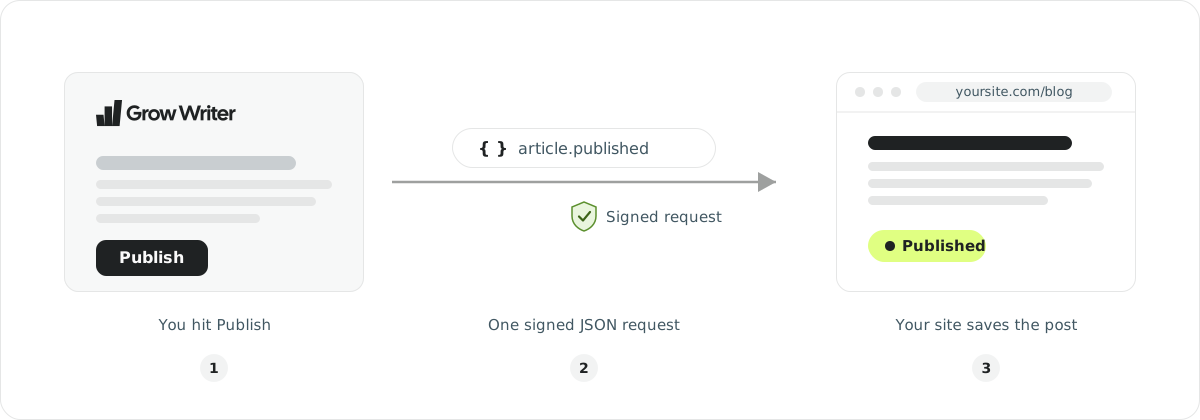
The whole flow is three steps:
- You give GrowWriter the address of an endpoint on your site (a URL that accepts requests, served by a small piece of code we call the receiver), and GrowWriter gives you a secret key in return.
- When you publish an article, GrowWriter sends one
POSTrequest to that endpoint. The request body is the complete article as JSON, and the request is signed with your secret so you can be sure it really came from GrowWriter. - Your site verifies the signature, saves the article, and answers with a
success status (any
2xx), optionally including the new post's URL so GrowWriter can link to it. A redirect (3xx) is not a success. Done.
Why the signature and the secret?
Your endpoint is a public URL. Anyone on the internet can send a POST
request to it, and a fake "article" from a stranger would look just like a
real one. The signature is how you tell them apart. Here's the whole idea in
four steps:
- The secret is a password only you and GrowWriter know. You get it once, during setup, and store it on your server. It never travels inside the requests.
- GrowWriter stamps every request with a fingerprint. Before sending, it computes an HMAC: a hash of the request body and the current time, mixed with your secret. Only someone holding the secret can produce that fingerprint.
- Your endpoint recomputes and compares. You run the same computation
on the body you received. If your result matches the fingerprint in the
X-GrowWriter-Signatureheader, two things are proven at once: the request really came from GrowWriter, and nobody changed the body on the way. - The timestamp blocks replays. The sending time is baked into the fingerprint, so an attacker can't record a real request and send it again later. Reject anything older than five minutes and a captured request expires before it can be reused.
You don't have to build any of this yourself. Every code example below does all four parts. This section only explains what that code is for.
Set it up, step by step
Connect the webhook in GrowWriter
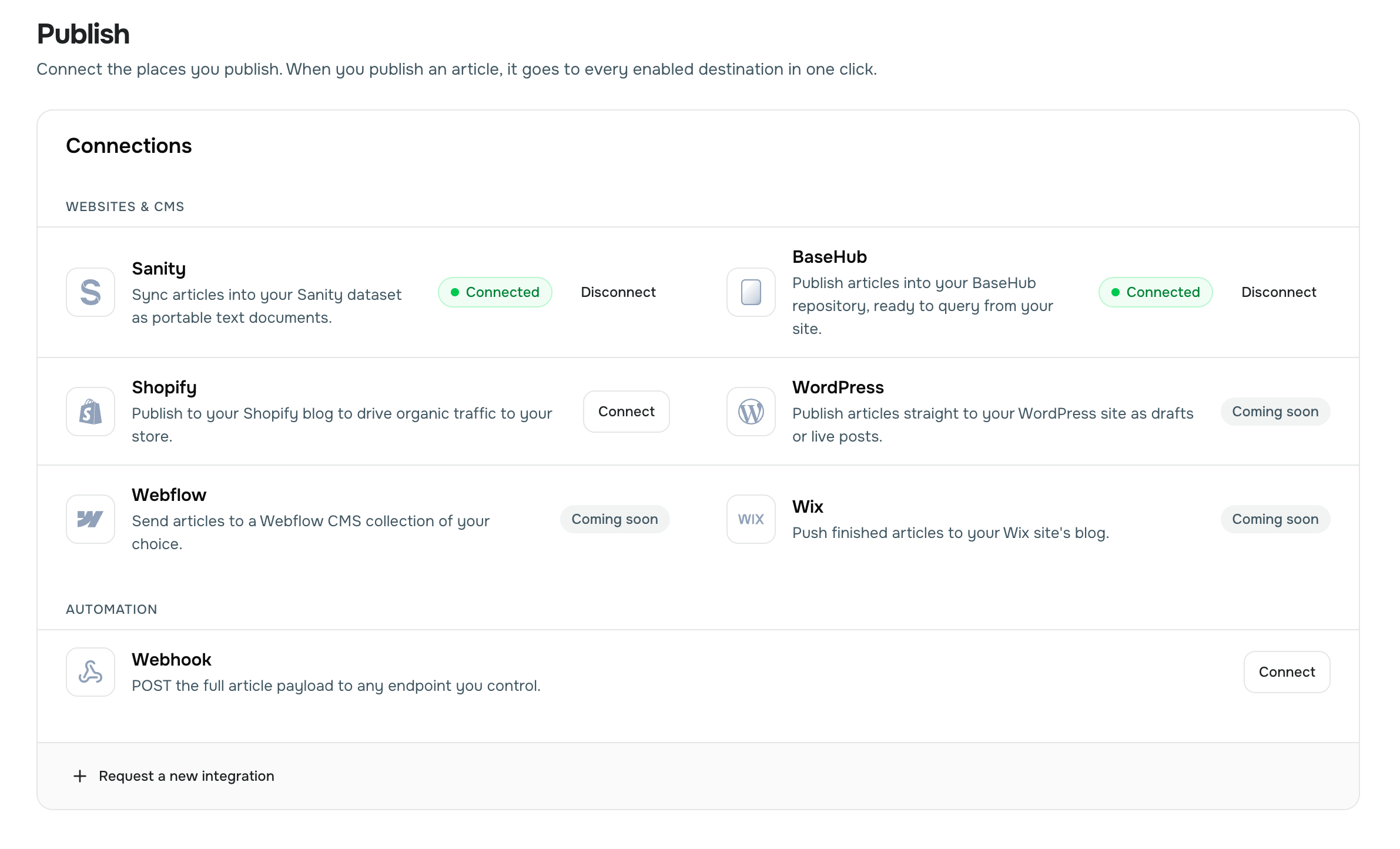
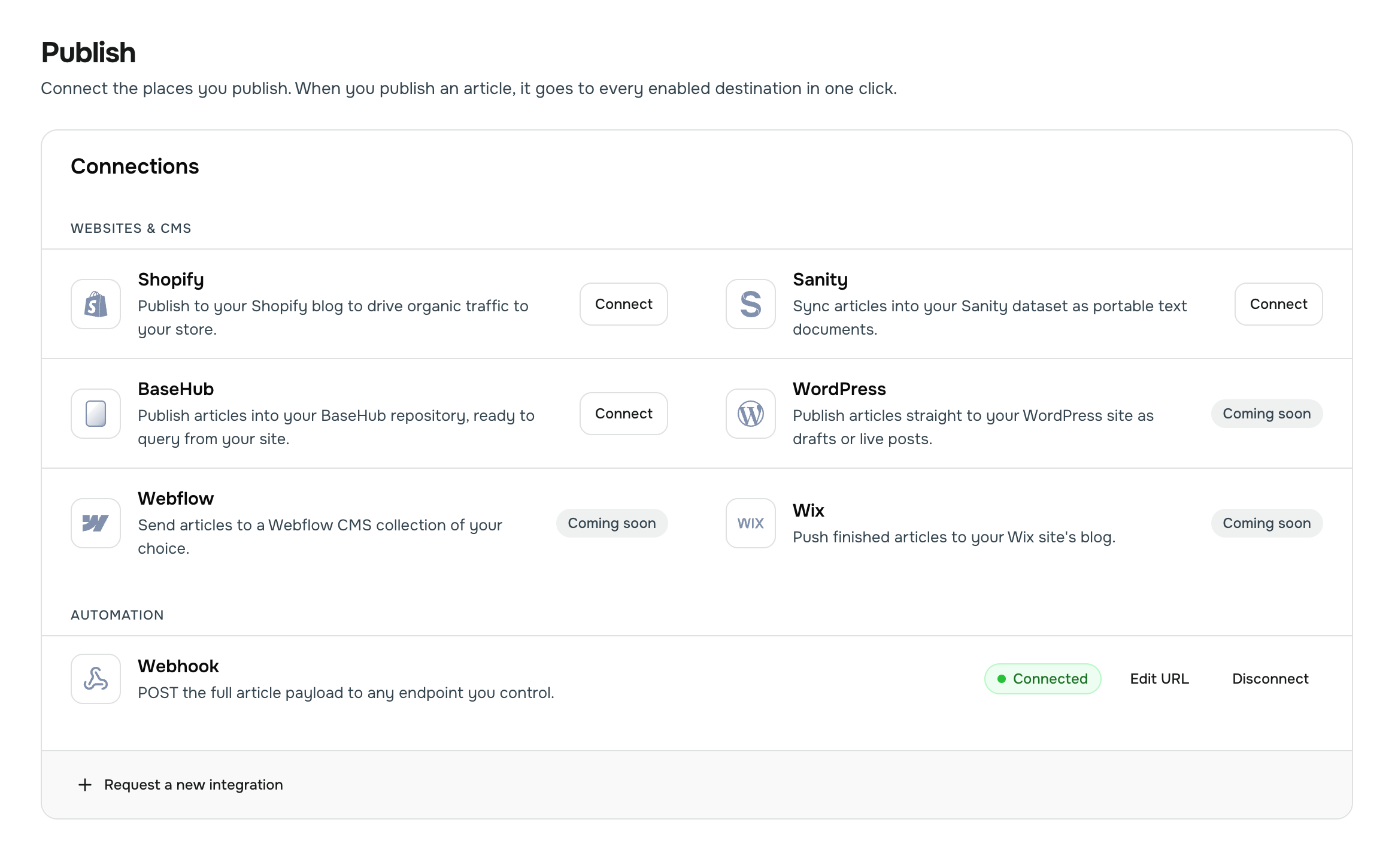
Open the Publish page in GrowWriter and find the Webhook card under Automation. Click Connect.
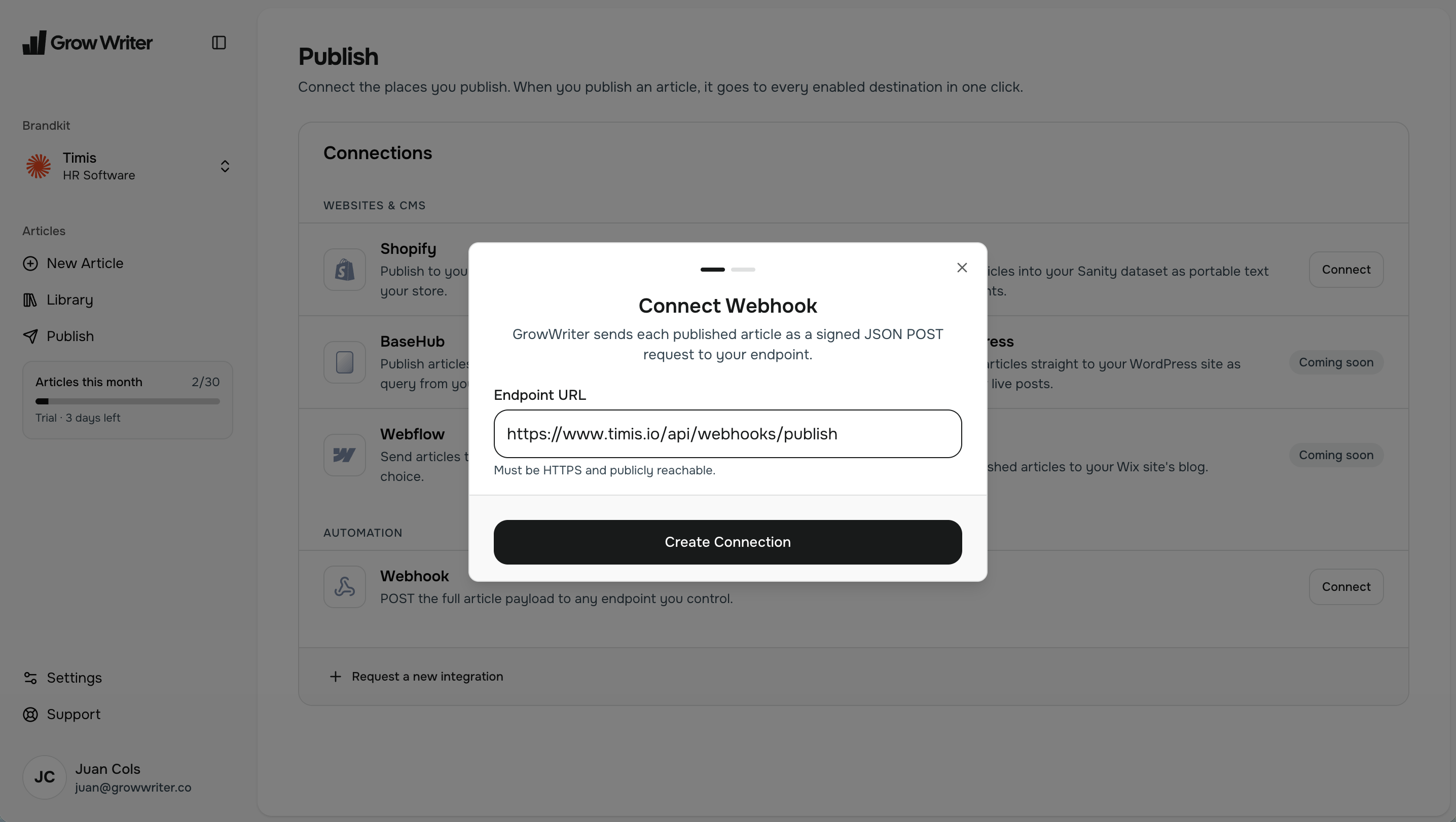
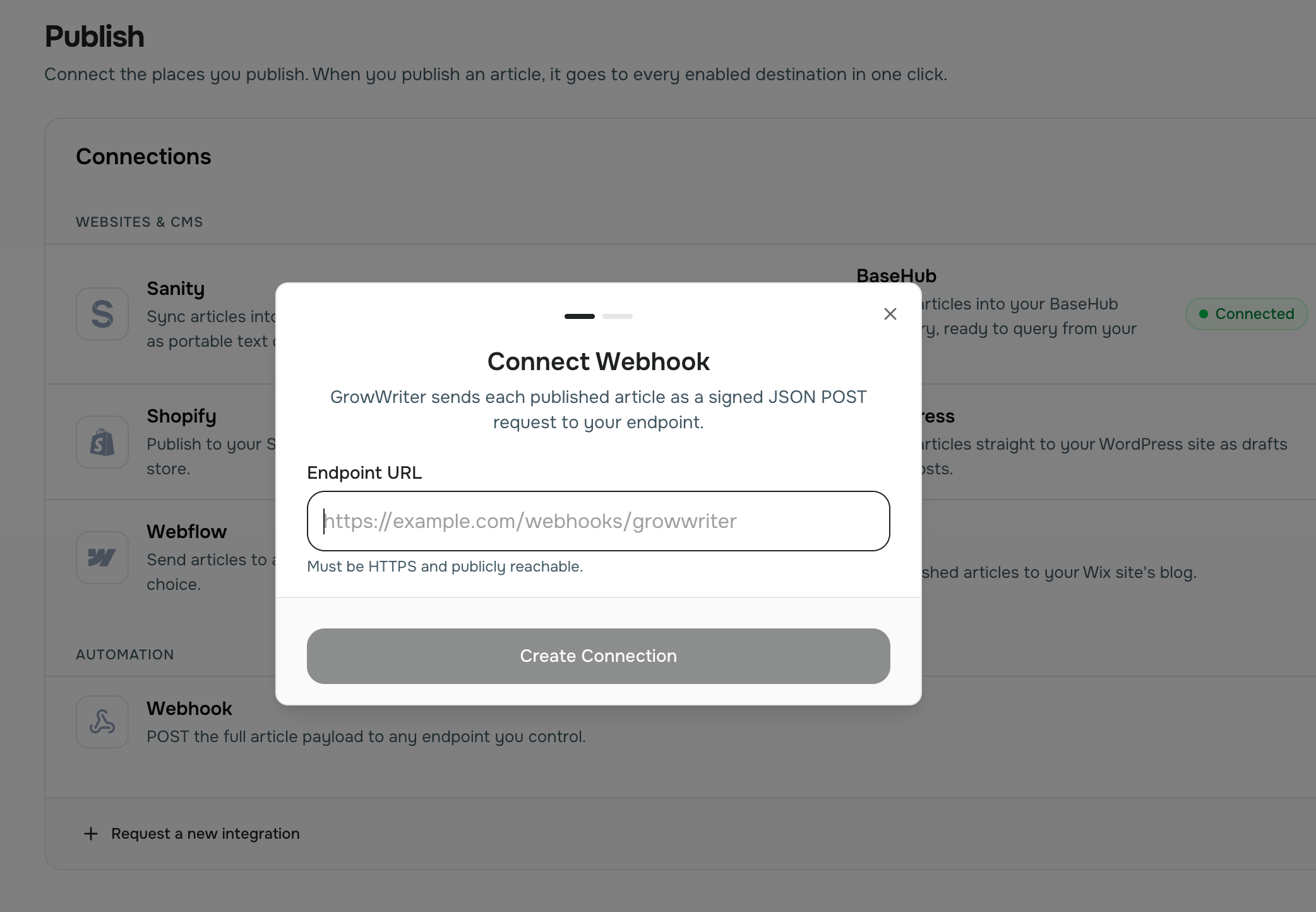
Enter your Endpoint URL. This is the address on your website that will
receive articles, for example https://example.com/webhooks/growwriter.
Three rules: it must start with https://, it can't contain a username or
password, and its host must be reachable from the internet (localhost and
private network addresses are rejected).
Don't have the endpoint built yet? No problem. GrowWriter checks the address but doesn't call it at this point, so you can connect first and write the code right after.
Use the exact URL your site answers on, with no redirect
If your host redirects example.com to www.example.com (or the reverse),
enter the address it redirects to. GrowWriter never follows a redirect,
so a redirecting address fails every delivery. Not sure which one your site
uses? Check it in
troubleshooting. You can
change the address later with Edit URL on the webhook row, and your
secret stays the same.
Click Create Connection. The webhook row shows Not verified until the first test event or publish succeeds.
Copy your signing secret
The dialog now shows your Signing Secret. It starts with whsec_, and
it's the shared password from Why the signature and the
secret?: the key your code uses to check that a request
really came from GrowWriter.
Click Copy secret and store it somewhere safe on your server, typically as an environment variable:
GROWWRITER_WEBHOOK_SECRET=whsec_your_secret_hereOne detail that trips people up: when your code verifies a signature, the key
is the whole string, whsec_ prefix included. Don't strip the prefix. And
if you want to validate the value in your config, a secret is always whsec_
followed by 43 URL-safe base64 characters.
This secret is shown only once
GrowWriter stores it encrypted and can't show it again. If you lose it, disconnect and reconnect the webhook to get a fresh one. Reconnecting always creates a new secret, and the old one stops working.
Build your endpoint
From here on, this is a developer's job. Send this page to the person who runs your website; they need the secret from step 2. You come back at step 4 to send the test event.
The endpoint is a small piece of code, the receiver, at the URL from step 1.
It reads the request exactly as it arrived, checks the signature, answers
with a 2xx status, and saves the article. If it knows the post's public
URL by then, it can return it as {"url": "https://…"} and GrowWriter shows
a View post link in the publish dialog.
Not sure which example to use? If your site runs on Next.js, Vercel or Netlify, start with the Next.js tab. If you run your own server, pick the language it is written in. Copy the file from the code examples below, put the secret from step 2 in your hosting provider's environment variables (settings your host keeps outside your code), and deploy so the file answers at your endpoint URL.
Every example already answers the test event. Saving the article is where your own setup comes in: if your site uses a CMS or a database, Save the article into your CMS tells you what to prepare.
Send a test event
Back in the GrowWriter dialog, click Send test event. GrowWriter sends a
small, signed ping to your endpoint. It looks like this:
{
  "version": "2026-09-06",
  "event": "ping",
  "deliveryId": "5f0c9a1e-4d2b-4f6a-9c3e-8b7d6a5e4f3c",
  "sentAt": "2026-09-01T09:30:00.000Z"
}
Note there's no article in it. That's how your code can tell a test from the real thing.
GrowWriter signs the ping exactly like a real delivery and sends it the same
way too: up to three attempts, each waiting 10 seconds for any 2xx, so an
endpoint that never answers takes about half a minute to fail. When your
endpoint answers, the dialog shows Test event delivered. Click Done
and you're connected.
If the test fails, the dialog names the reason. Your endpoint URL
redirects. Enter the address it redirects to and try again means your
address sends GrowWriter somewhere else, and the message shows the address
to use instead. Your endpoint rejected the
delivery quotes the status your endpoint returned and the first 200
characters of its response body, so a 404 or a 500 with a short error
message explains itself. Delivery failed after several attempts means
GrowWriter could not connect at all: the address is not public, or the site
is down. Every message has an entry on the
troubleshooting page. A failed test never
breaks the connection, so you can retry as often as you like.
Publish an article
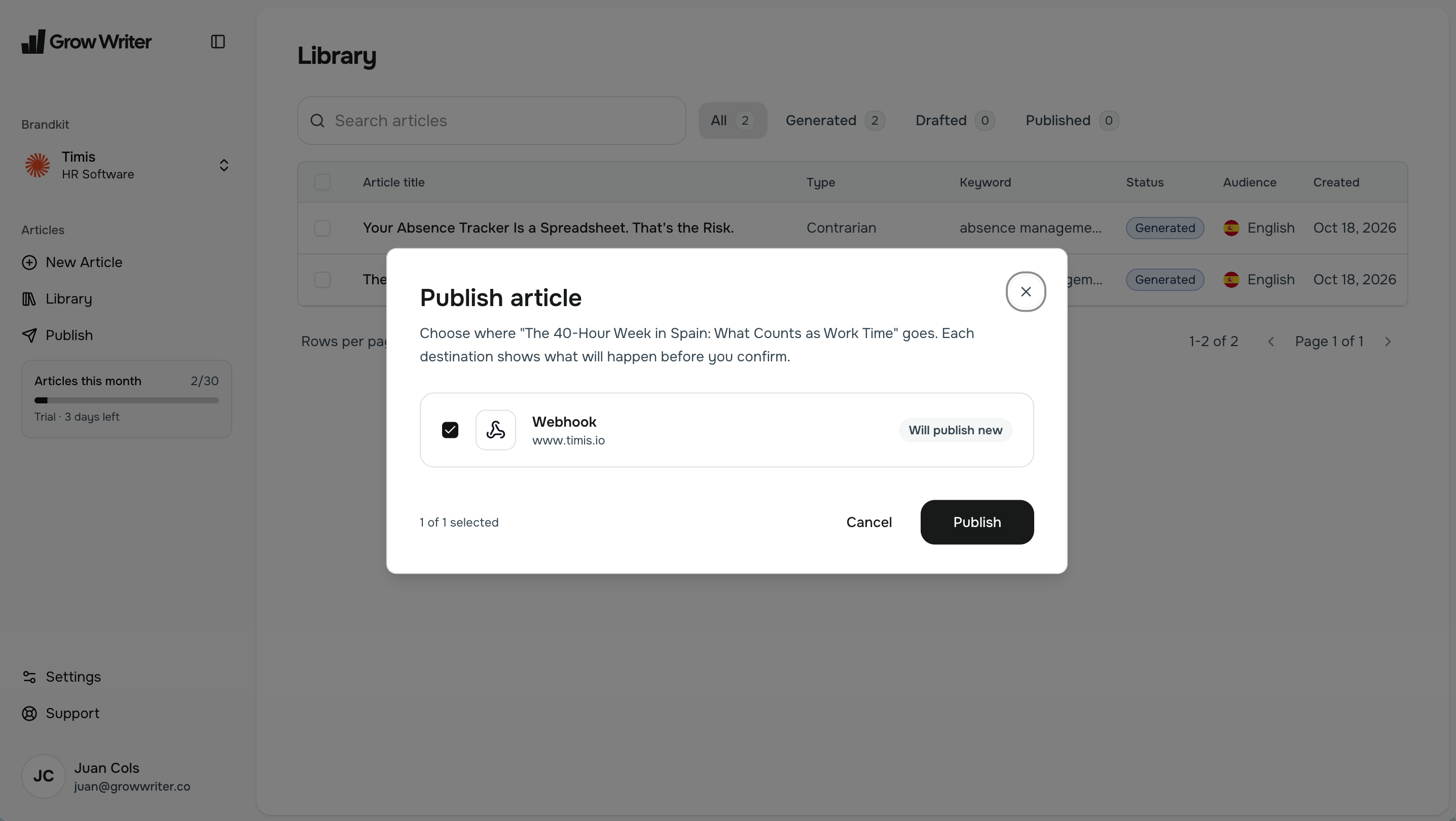
Open one of your finished articles and publish it. Pick your webhook as a
channel and GrowWriter delivers the full article to your endpoint as an
article.published event.
Publish the same article again later (after edits, for example) and your
endpoint receives an article.updated event instead, with the same article
id. That id is how your site knows to update the existing post instead of
creating a duplicate. "Updated" simply means a previous publish to this
webhook succeeded; a second webhook connection gets article.published
again, because it has never seen the article.
Delete the article in GrowWriter later, or disconnect the webhook, and your
endpoint receives article.unpublished with only the article's id, slug
and language. Hiding or deleting the post is your call; the examples below
log it.
Code examples
Pick the tab that matches your stack. Every example verifies the signature (the four steps from Why the signature and the secret?), answers the test ping, skips deliveries it has already processed, and hands the article to a save function shaped the way a CMS expects. The Next.js and Express examples log the post, because serverless hosts give your code a read-only filesystem; the Flask, PHP, Rails and Go examples write one JSON file per article. Swap either for your own database call. The reasons behind each line are in Save the article into your CMS.
Two details you'll see in the code. The examples reject any delivery whose timestamp is older than five minutes: that's the replay window from the section above, strict enough to make replays useless and loose enough to absorb clock drift between servers. And they compare signatures in constant time: the comparison takes equally long whether a guess is close or completely wrong, so an attacker can't learn anything by measuring response times.
One rule matters more than all the others: verify the signature over the raw request body, exactly as it arrived. If your framework parses the JSON first and you re-serialize it, the bytes change and the signature check fails. Every example reads the raw body first for exactly this reason.
import { createHmac, timingSafeEqual } from 'node:crypto';

// How many seconds old a delivery may be before we reject it.
// Protects against someone replaying an old captured request.
const MAX_AGE_SECONDS = 5 * 60;

// Delivery ids we've finished processing. Good enough for one server;
// in production use a table in your database instead. If your host runs
// your code as short-lived functions (serverless), this list does not
// survive between requests.
const processedDeliveries = new Set<string>();

function verifySignature(rawBody: string, signatureHeader: string, secret: string) {
  // The header looks like: t=1756718400,v1=5257a869e7...
  const parts = Object.fromEntries(
    signatureHeader.split(',').map((part) => part.split('='))
  );

  // 1. The timestamp must be recent. GrowWriter re-signs every retry,
  //    so a fresh delivery always carries a fresh timestamp.
  const age = Math.abs(Date.now() / 1000 - Number(parts.t));
  if (!(age < MAX_AGE_SECONDS)) {
    return false;
  }

  // 2. Recompute the signature: HMAC-SHA256 of "timestamp.rawBody",
  //    keyed with your WHOLE signing secret (whsec_ prefix included).
  const expected = createHmac('sha256', secret)
    .update(`${parts.t}.${rawBody}`)
    .digest('hex');

  // 3. Compare in constant time so the check can't be timed.
  const provided = Buffer.from(parts.v1 ?? '', 'hex');
  const wanted = Buffer.from(expected, 'hex');
  return provided.length === wanted.length && timingSafeEqual(provided, wanted);
}

// Turn the payload into the shape a CMS expects. Each line applies one of
// the six rules from "Save the article into your CMS" below.
function toPost(article: any) {
  const images = [article.coverImage, ...article.images].filter(Boolean);
  return {
    growwriter_id: article.id, // rule 1: a dedicated field, never a stray key
    title: article.title,
    slug: article.slug,
    summary: article.summary ?? '', // omitted from the payload when unset
    body: article.content.markdown, // rule 6: escape if you compile it as MDX
    published_at: article.dates.firstPublishedAt.slice(0, 10), // rule 2: YYYY-MM-DD
    updated_at: article.dates.modifiedAt.slice(0, 10),
    status: 'published', // rule 3: the payload has no published flag
    seo_keyword: article.keyword ?? '', // rule 4: the keyword is an SEO field, not a tag
    faq: article.relatedQuestions, // rule 4: FAQ material, not tags
    image_urls: images.map((image: any) => image.url), // rule 5: download and resize
  };
}

// Store the post in your database or CMS. This example only logs it,
// on purpose: Vercel and most serverless hosts mount the code directory
// read-only, so writing a file here would crash the first real delivery
// with a 500. Whatever you store, key it by article.id: when the same
// article is published again ("article.updated") you overwrite the same
// record. That create-or-update is all an "upsert" means. It returns the
// post's public URL so the handler can hand it back to GrowWriter.
async function saveArticle(article: any, event: string) {
  const post = toPost(article);
  const verb = event === 'article.published' ? 'Created' : 'Updated';
  console.log(`${verb} ${post.growwriter_id}: ${post.title}`);
  return `https://www.example.com/blog/${post.slug}`;
}

export async function POST(request: Request) {
  // Read the body as raw text FIRST. Don't use request.json() before
  // verifying: the signature covers these exact bytes.
  const rawBody = await request.text();

  const signature = request.headers.get('x-growwriter-signature') ?? '';
  const secret = process.env.GROWWRITER_WEBHOOK_SECRET ?? '';

  if (!verifySignature(rawBody, signature, secret)) {
    return new Response('Invalid signature', { status: 401 });
  }

  const payload = JSON.parse(rawBody);

  // The "Send test event" button sends a ping with no article in it.
  // Answering 200 here is what makes the test succeed.
  if (payload.event === 'ping') {
    return new Response('pong', { status: 200 });
  }

  // Deleting the article in GrowWriter (or disconnecting the webhook) sends
  // article.unpublished with only the id, slug and language. Hide or delete
  // your post here; this example just logs it.
  if (payload.event === 'article.unpublished') {
    console.log(`Unpublished ${payload.article.id}`);
    return new Response('OK', { status: 200 });
  }

  // Retries reuse the same delivery id. If this id is already done,
  // the article is saved: just answer OK again and skip the work.
  const deliveryId = request.headers.get('x-growwriter-delivery') ?? '';
  if (processedDeliveries.has(deliveryId)) {
    return new Response('OK', { status: 200 });
  }

  // payload.event says which case this is: "article.published" for a
  // new article, "article.updated" when an id you've seen comes back.
  const postUrl = await saveArticle(payload.article, payload.event);
  processedDeliveries.add(deliveryId);

  // GrowWriter waits at most 10 seconds per attempt. A database write
  // fits easily; if your save is slower, see "What about the 10-second
  // limit?" below. Returning the post's URL is optional: it gives the
  // publish dialog a "View post" link. A plain 'OK' is fine if you
  // don't know the URL yet.
  return Response.json({ url: postUrl }, { status: 200 });
}
Using another stack?
The examples translate to any language that can compute an HMAC. The only step people get wrong is the first one: verify the signature over the raw request body, exactly as it arrived. Here's where to find it in other common stacks:
| Stack | Raw request body |
|---|---|
| Django | request.body |
| Laravel | $request->getContent() |
| Sinatra | request.body.read |
| Cloudflare Workers | await request.text() |
| Deno / Bun | await request.text() |
What about the 10-second limit?
GrowWriter waits up to 10 seconds per attempt for your answer. Saving a JSON record fits comfortably. If your endpoint does slower work, like downloading every image before saving, you have two options:
- Lean on the retries (recommended for simple endpoints). Keep the
handler exactly as shown: it creates or updates by
article.idand skips finished delivery ids, so running it twice is harmless. If the first attempt times out, your server keeps working. The retry finds the work done, or does it again, and answers inside the window. Nothing is lost, and you write no extra code. - Answer first, work later. Store the raw payload, respond
200immediately, and process it in a background job. This always beats the clock, but know the trade: once you answer200, the delivery counts as successful. If your background job then fails, GrowWriter won't retry, and the only way to get the article again is to publish it again. And since the post doesn't exist yet when you answer, you can't return its URL, so the publish dialog shows no View post link for that publish.
Save the article into your CMS
The payload is GrowWriter's shape. Your CMS, database, or static-site generator has its own shape, and most of them check it: a schema is the list of fields a content type allows and the format each one accepts. The code above translates between the two. This section explains the six rules behind it, so you can adapt them to your setup.
Before your first delivery, open your CMS admin and answer five questions:
- Where will the GrowWriter id live?
- What format do your date fields accept?
- Which field marks a post as published, and what is its default for new content?
- Where should keywords go, if anywhere?
- Where will images be stored?
Rule 1: give the GrowWriter id its own field
What. article.id is 25 lowercase letters and digits, starting with
c. It is safe in URLs and file names and never changes.
Why. Most CMSs reject fields they don't declare. Writing the id as a
stray key next to the title breaks the post in the admin, even if the site
still renders it (the reported error looked like
Key on object value "growwriterId" is not allowed).
Do this. Add a dedicated field such as growwriter_id to your content
type before the first delivery, or keep a separate table that maps ids to
your posts. Name files by the id, never by the slug.
Rule 2: convert the dates
What. Every date is ISO 8601 in UTC with milliseconds, like
2026-09-02T11:29:14.967Z.
Why. Date-only CMS fields accept YYYY-MM-DD and refuse a full
timestamp.
Do this. Take the first ten characters for date-only fields. Use
dates.firstPublishedAt as the published date and dates.modifiedAt as
the updated date. modifiedAt is the time of the publish request, not the
last edit, so never compare the two dates to detect an update: the event
tells you.
Rule 3: set the published state yourself
What. The payload has no published or draft flag. The event is the flag, and it is gone once the request ends.
Why. Many CMSs treat new content as a draft by default. A post that was live because your build ignored that default goes offline the first time someone saves it in the admin.
Do this. Write your published state explicitly (status: "published",
draft: false, or whatever your CMS uses) on both article.published and
article.updated. When article.unpublished arrives (the article was
deleted in GrowWriter, or the webhook disconnected), flip that state back or
delete the post; the payload carries only the id, slug and language, so the
decision is yours.
Rule 4: the keyword and the questions are not tags
What. article.keyword is the one search term the article was written
for, as the author typed it. It may be absent. article.relatedQuestions is
the list of questions Google shows as "people also ask" for that keyword, in
the article's language; it is always present and may be empty.
Why. A search term is not a tag, and a question is not a category. Rendered as tags they put search phrases on your live pages; used as an FAQ under the article, the questions earn their place.
Do this. Store the keyword for your SEO tooling. Show the questions as an
FAQ block, or as FAQPage structured data if your renderer supports it. If
you want tags, decide them in your CMS.
Rule 5: download and optimize the images
What. Image URLs point to GrowWriter's public storage. They don't expire today, but GrowWriter isn't a long-term image host. Files arrive as fetched, at their original resolution, and a single image can exceed 10 MB.
Why. Committing or serving multi-megabyte originals slows every page.
Do this. Download each image (cover and inline), resize it to the widest
size your layout needs, compress it, and store it on your side. Then rewrite
the URLs in whichever content format you save. Two things make that easy:
unchanged images keep their exact URLs across updates, so you can skip
anything you already mirrored, and the same URLs appear inside the content.
Name your files from article.id and the image's position;
images[].filename is optional and has no extension, and sectionSlug only
says which outline section the image was made for, so don't parse or key on
it.
let html = article.content.html;
for (const image of [article.coverImage, ...article.images].filter(Boolean)) {
  const localUrl = await mirrorImage(image.url); // download + save to your storage
  html = html.replaceAll(image.url, localUrl);
}
Rule 6: escape for your renderer
What. Ordinary prose contains characters like {, } and <.
Why. MDX, JSX, and templating engines read those as code, and the build fails on the first article that contains them.
Do this. Store the markdown as data and render it with a Markdown
renderer, or escape those characters before compiling. content.html is
already escaped and uses a fixed set of tags, so it is the safe choice for
direct insertion.
Handling updates and translations
- Updates: same
id, overwrite the post. Editing the title keeps the slug; only picking a new title in the writer produces a new one. When it does change, update the post's address and consider redirecting the old one. Replaced images get new URLs. Treat the latest delivery as authoritative for every field. - Translations: each language is a separate article with its own
id. GrowWriter doesn't link them. Pair languages with your own data, usingarticle.language(a two-letter code likees).
Test it locally
You don't need to publish a real article to exercise your endpoint. This
snippet signs a test ping exactly the way GrowWriter does, using openssl,
and sends it to your local server with curl:
# Use the same secret your local server has in GROWWRITER_WEBHOOK_SECRET.
SECRET="whsec_your_secret_here"
BODY='{"version":"2026-09-06","event":"ping","deliveryId":"9d2f7c1e-6a3b-4c8d-b5e0-1f2a3b4c5d6e","sentAt":"2026-09-01T09:30:00.000Z"}'

# Sign "timestamp.body" with HMAC-SHA256, exactly like GrowWriter.
TIMESTAMP=$(date +%s)
SIGNATURE=$(printf '%s.%s' "$TIMESTAMP" "$BODY" | openssl dgst -sha256 -hmac "$SECRET" | sed 's/^.* //')

curl -X POST "http://localhost:3000/webhooks/growwriter" \
  -H "Content-Type: application/json" \
  -H "X-GrowWriter-Event: ping" \
  -H "X-GrowWriter-Delivery: 9d2f7c1e-6a3b-4c8d-b5e0-1f2a3b4c5d6e" \
  -H "X-GrowWriter-Signature: t=$TIMESTAMP,v1=$SIGNATURE" \
  --data "$BODY"
Adjust the port and path to wherever your server runs. A working endpoint
answers pong with a 200. Now change one character inside BODY and run
it again: you should get a 401, which proves your signature check actually
checks. To rehearse a full article, replace BODY
with the full sample payload
(as a single line) and set the two event headers to article.published.
To receive real events from GrowWriter on your machine, remember that the
endpoint URL must be public, so localhost won't work. A tunnel service like
ngrok or cloudflared gives your local server a temporary public HTTPS
address; use that as the endpoint URL while you develop, then switch to the
real one.
What's in the payload
Every delivery is a POST with Content-Type: application/json, three
X-GrowWriter-* headers (event name, delivery id, signature), and a JSON
body carrying the article in three formats. The
payload reference is the contract: every
header and field with its type, whether it is always present, its exact
format, and the complete sample.
The fields that do the heavy lifting:
| Field | How to use it |
|---|---|
article.id | Your stable key. Store it in a dedicated field and update the existing post when the same id returns. |
article.slug | Display data for the post's address. It changes when a new title is picked in the writer, so never use it as your key. |
article.language | Two-letter language code (en, es, ...) for routing posts on a multilingual site. Each translation is its own article with its own id. |
article.content | The article in three formats: markdown, ready-made html, and structured blocks. Use whichever fits your site. |
article.dates | firstPublishedAt is your published date, modifiedAt your updated date. Take the first ten characters for date-only fields. |
article.coverImage and article.images | Cover plus every inline image in order. Download and resize them. |
article.keyword and article.relatedQuestions | The search term the article targets, and the questions Google pairs with it. SEO field and FAQ material; neither is a tag. |
article.brand | Your brand's name and website for SEO markup, never a person. Set author bylines in your own save logic. |
New optional fields can appear without the version date changing, so
ignore fields you don't recognize. Breaking changes bump the date and are
announced in the changelog first; the full policy is under
Versioning.
Delivery and retries
One publish to one connection is one delivery, and a delivery makes up
to three attempts (immediately, then 1 second and 3 seconds later), each
waiting up to 10 seconds for any 2xx. All attempts share one delivery id
and are signed fresh, redirects are never followed, and GrowWriter does not
retry later: after the third failure the channel shows a Retry
button in the publish dialog, which starts a new delivery. The exact rules,
including the at-least-once note your dedupe relies on, are in the
reference: Delivery.
Troubleshooting
Every failure has its own entry on the troubleshooting page, organized by what you see. The most common ones on a first connection:
- The test event fails with HTTP 301, 302, 303, 307 or 308
- "Your endpoint did not respond in time"
- "Your endpoint rejected the delivery"
- The test passes, but the first article fails with a 500 on Vercel or Netlify
- The test succeeds but real articles fail
- The article is live, but my CMS admin shows a validation error
- I deleted an article in GrowWriter, but it is still on my site
Still stuck? Contact us from the app and we'll figure it out together.
Changelog
- Current version:
2026-09-06. The payload described in the reference is the first published contract. Future changes are listed here, newest first: additive changes keep the version date, removals or renames bump it and are announced here before they ship.
Webhook quickstart
Connect GrowWriter to your own website and get your first signed test event delivered, on one page, with one file of code.
Webhook payload reference
Every header and field GrowWriter sends to your webhook endpoint, with its type, whether it is always present, its exact format, and what you can rely on.