Write your first article
Go from your Brandkit to a finished, search-ready article in six steps, with you approving each one. No writing skills needed.
Last updated on
This page walks you through your first article, from the moment you sign up to the moment it sits in your Library ready to publish. GrowWriter does the research and the writing; you make the decisions. Each step needs a few minutes of your attention, and GrowWriter does the long work in between.
Before you start: your Brandkit
Your Brandkit is what makes every article sound like you. You build it once, when you sign up, and GrowWriter uses it for every article after that.
- Your website: enter your website address and the country your audience lives in, then click Analyze my website. No website yet? Click No website yet and describe your business instead.
- Your brand, Your audience and Your brand voice: GrowWriter reads your site and writes a short description of each. Read them, fix anything that is off, and click Looks good. The brand voice is the one worth a careful look: it decides how every article sounds.
- Your competitors: the sites GrowWriter found. Articles never link to them or cite them. Add or remove up to ten, then start your trial.
You can edit all of this later under Settings.
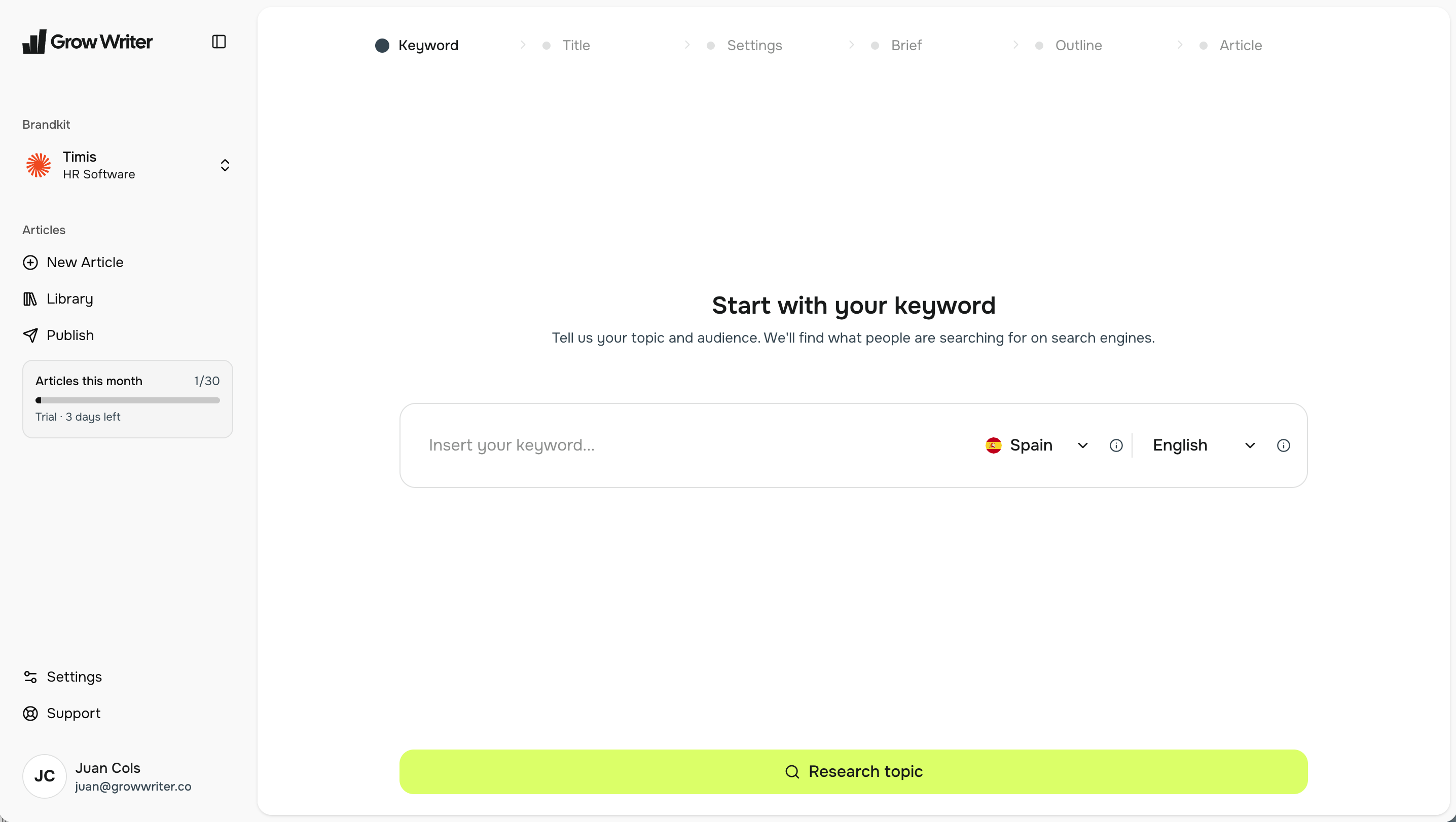
Start with your keyword
Click New Article. The first screen asks for one thing: the search term you want to be found for, the way a customer would type it. Pick the country and the language of your readers; both change what GrowWriter finds.
Click Research topic. GrowWriter looks at what people search for around your keyword and what the top results already say. Then click Generate titles.
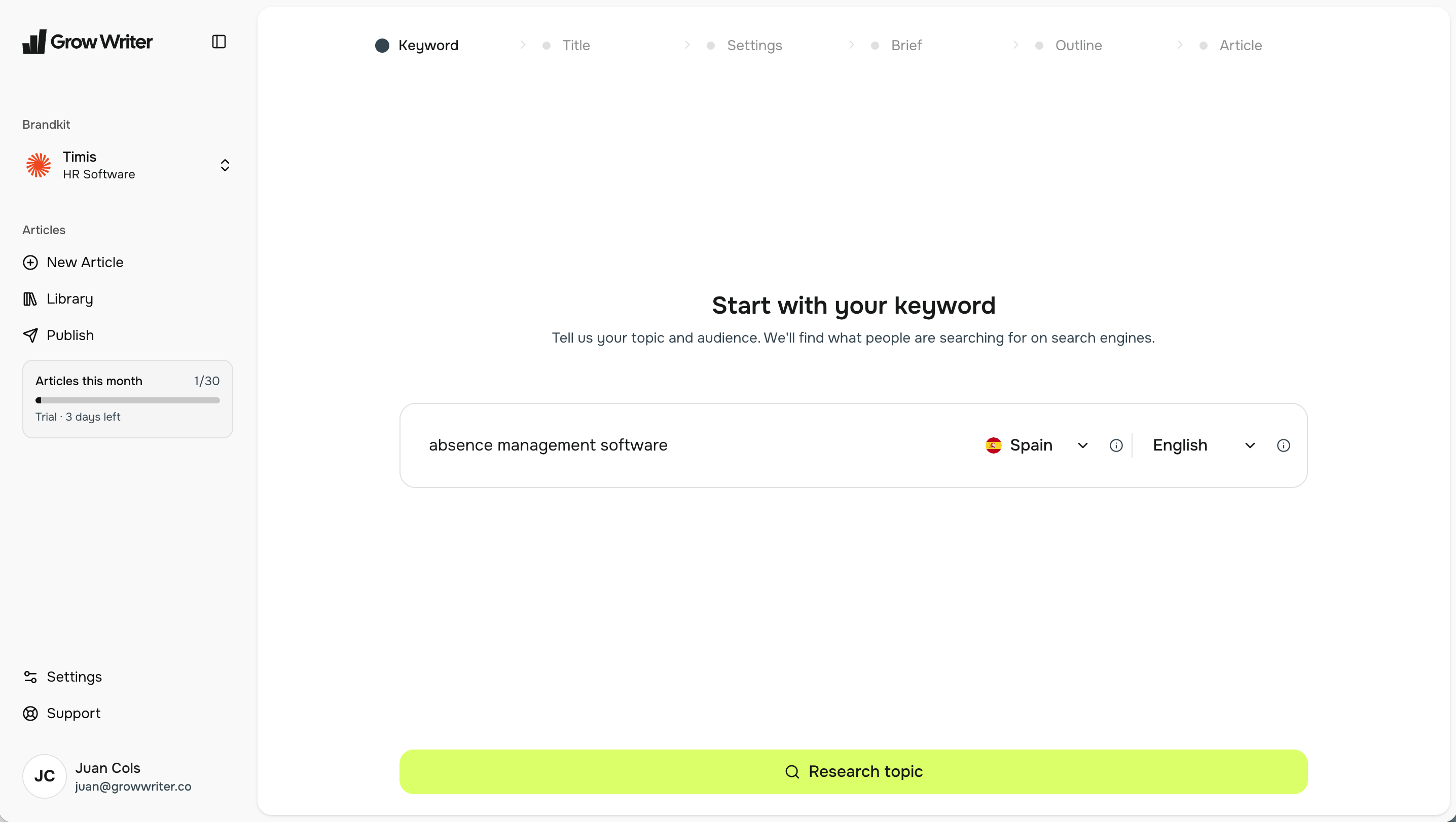
Choose your title
GrowWriter proposes several titles that match what your audience searches for. Pick the one you like; you can edit its wording with Edit title. Then click Continue to settings.
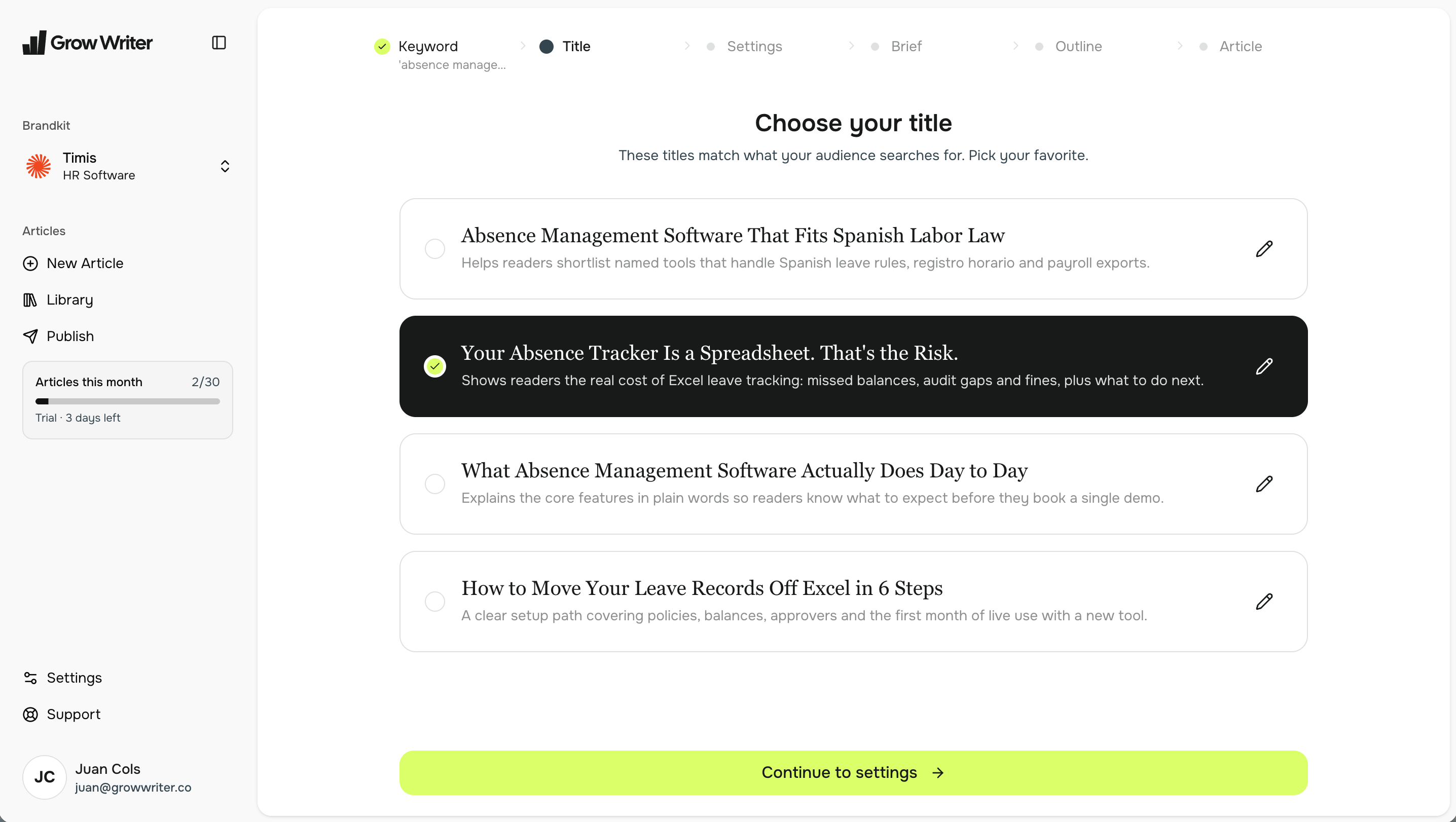
Set up your article
Three choices shape the article:
- Article length: Focused, Standard, In-Depth or Pillar. Standard suits most blog posts. Pillar is for the one big guide on your topic.
- Add internal links: on by default. GrowWriter finds pages on your own site worth linking to, and you can add or remove them.
- Call-to-action: optional. One sentence, like "Book a free consultation today". When set, the article ends with a short closing section built around it.
Click Generate brief.
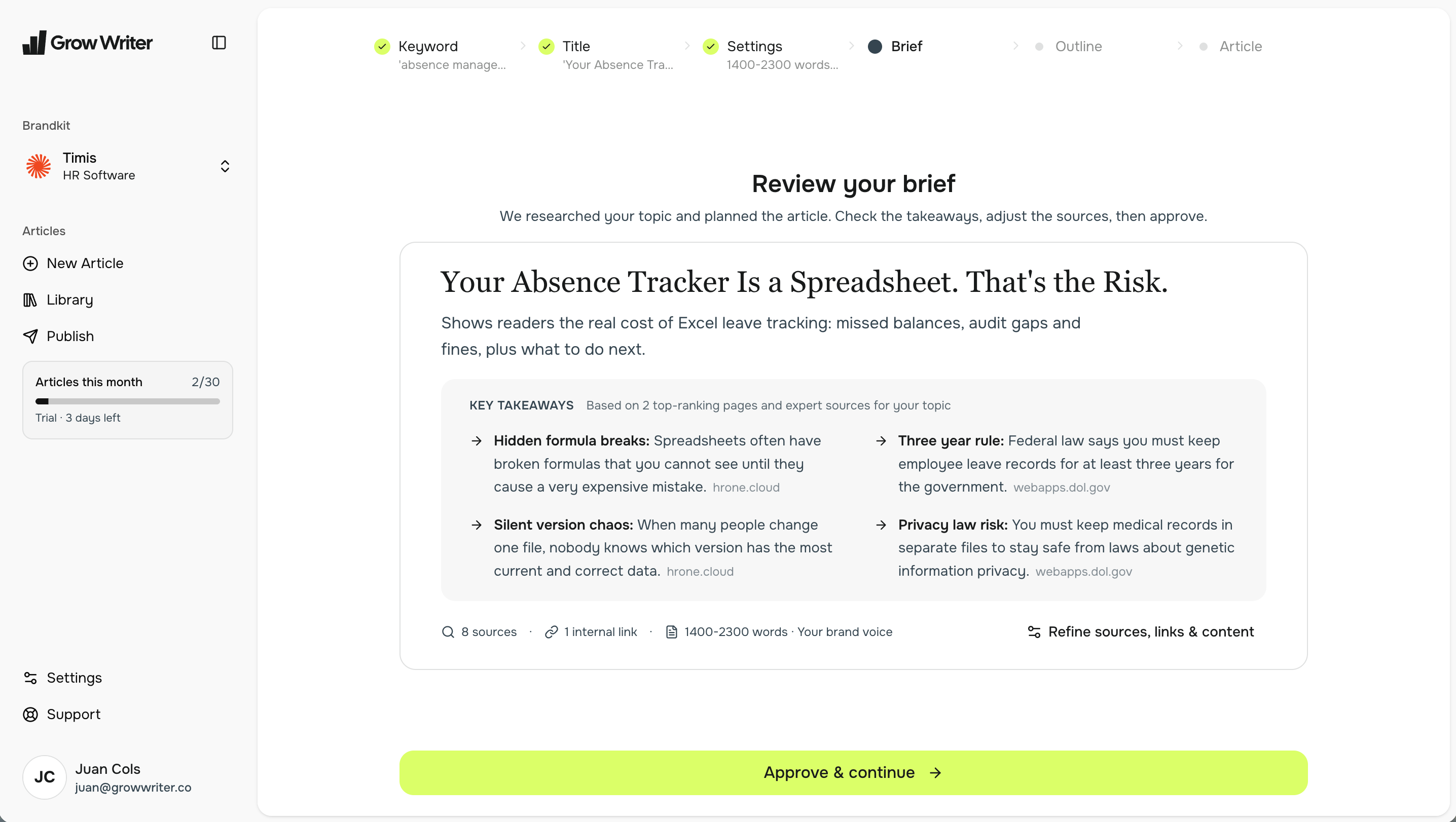
Review your brief
The brief is the plan: the key takeaways the article will make, the sources it draws from, and the internal links it will use. Read the takeaways; they are what your reader will remember.
Happy with it? Click Approve & continue. Want to change something? Click Refine sources, links & content to add or remove sources, links and takeaways, then approve. Then click Generate outline.
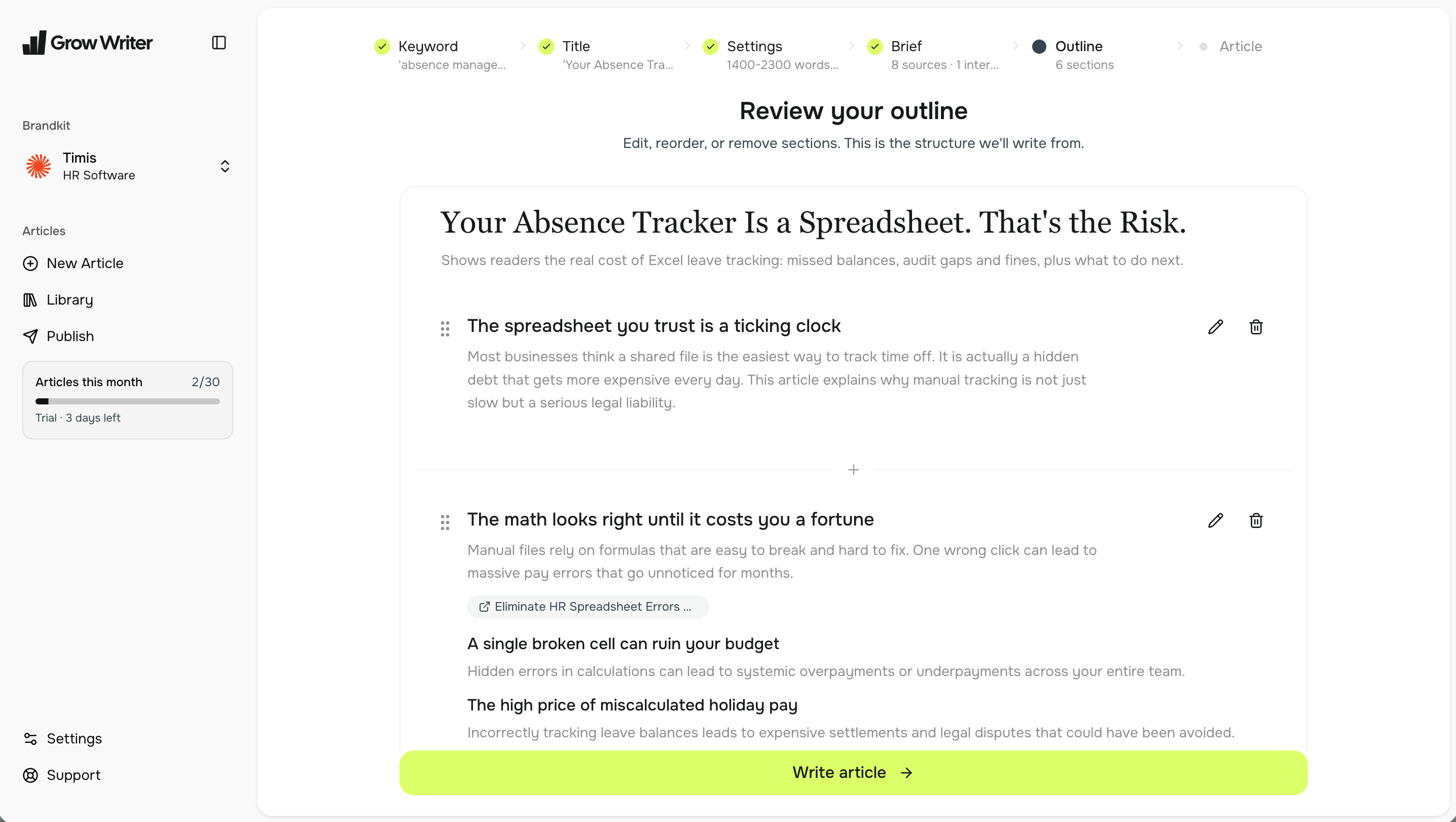
Review your outline
The outline is the list of sections, each with a one-line summary. Edit a heading, reorder sections, delete one, or click Add section here to add your own. This is the structure GrowWriter writes from, so it is the best place to make the article yours. Then click Write article.
Writing takes a few minutes. GrowWriter writes the sections, finds matching photos, and prepares the summary and the meta description for search engines. You can leave the page; the work continues.
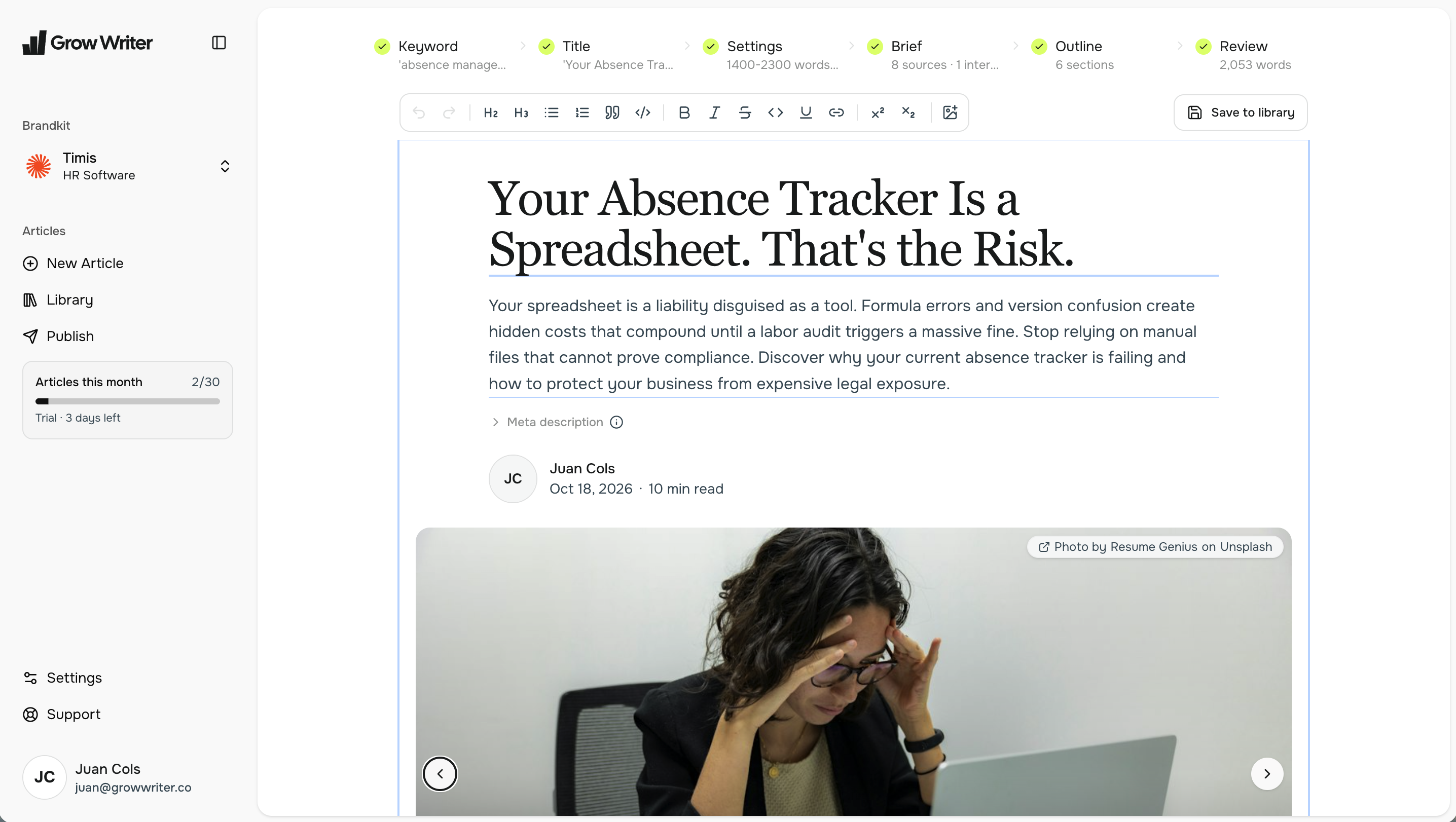
Review your article
Read the article. Edit anything you like, right in the text. Use Add Image to add a photo from your computer or to search for one by keyword. Every image comes with a caption and alt text; the cover photo is at the top.
When it reads the way you want, click Save to library. This is final: the article leaves the writing steps and lands in your Library, where you can still edit the text, export it, or publish it.
Two things to know while you write:
- Each step can be regenerated once. After that, the step is fixed, so take a moment on the title, the brief and the outline before moving on.
- Starting an article counts toward your monthly allowance right away, even if you never save it. The counter in the sidebar shows what is left.
Next: publish it
Your article is in the Library. Choose where to publish shows the channels and how to send the article to your site in one click.